Drawing Non-Standard Rounded Rectangles in Sketch
Sketch
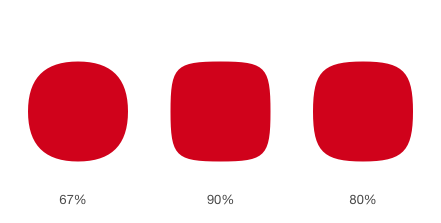
This post mainly explains how to draw a rounded rectangle like the one shown below in Sketch.

Before we begin, I want to say that Sketch is a very good tool for programmers who want to do simple design work. It is easy to use and has basically no learning barrier.
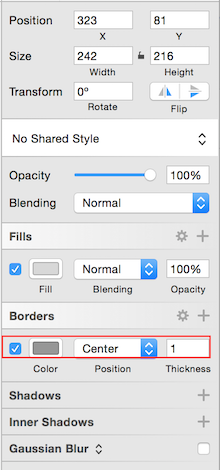
Open Sketch and choose Inset - Artboard to create an Artboard (or use the shortcut key A). You can think of an Artboard as a UIView in iOS. Once you create a UIView, you can add other shapes to it. Select the Artboard you just created, choose Inset - Shape - Oval, and hold Shift to draw a circle (in Sketch, holding Shift lets you draw a circle or other regular polygons). Select the circle and remove Borders in the left menu. At this point, the initial preparation is complete.
The method described in the reference article is to adjust the width or height of the anchor points in the circle. The problem is that Sketch does not let you directly set the stretch length or height of an anchor point. It only provides coordinate values.
For example, if you need to set the width of the anchor points to 67% of the circle diameter (the reference article says 67% is a fairly ideal value), how can you do it?
Select the circle, press Enter or double-click the shape to enter edit mode. At this point, four anchor points will appear on the top, bottom, left, and right. The width of the anchor points refers to the length of the straight line formed by the three anchor points inside the red rectangle, and the height should be self-explanatory.
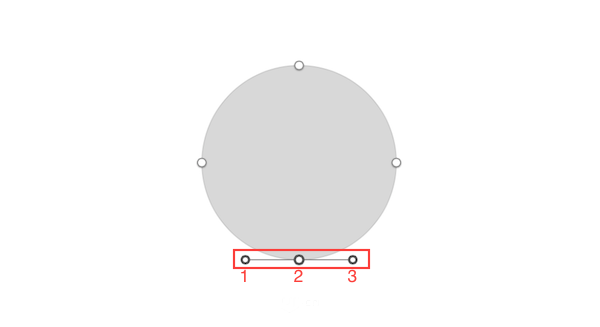
Now that the goal is clear, the rest is easy. Anchor point 2 needs to stay fixed, and you only need to adjust the x-axis positions of anchor points 1 and 3. Obviously, the distance from 1 to 2 should be 0.67 / 2 * R (the diameter), which is half of 67% of the diameter.
Next, let’s adjust it in practice. Select anchor point 2 and note its x-coordinate, then copy it down. For example, mine is 508.5. Also note the circle diameter, which in my case is 321. As I mentioned earlier, we need to adjust the x-coordinate of anchor point 1. So select anchor point 1 and enter 508.5 - 0.67 / 2 * 321 in the x-axis input box. Yes, the input box in Sketch supports arithmetic operations. Likewise, select anchor point 3 and enter 508.5 + 0.67 / 2 * 321. In this way, the bottom side is adjusted.
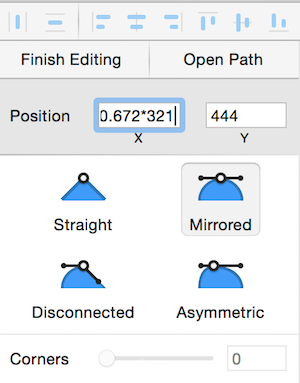
For the top anchor points, just copy the x-coordinate value we got earlier. For the left and right anchor points, you need to adjust the y-axis instead, so just replace x with y in the calculation. Different percentages will produce different rectangles, and the final result can be seen below.
Reference: Ding Yanxiang’s article